-
VSTools
main menuFollowing is an example of the menu displayed when the VStools menu-item is chosen from the main menubar: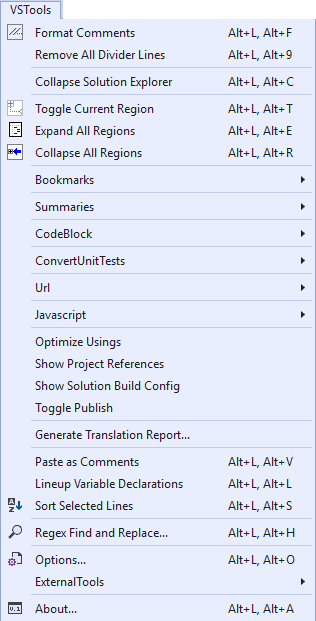
-
Format Comments
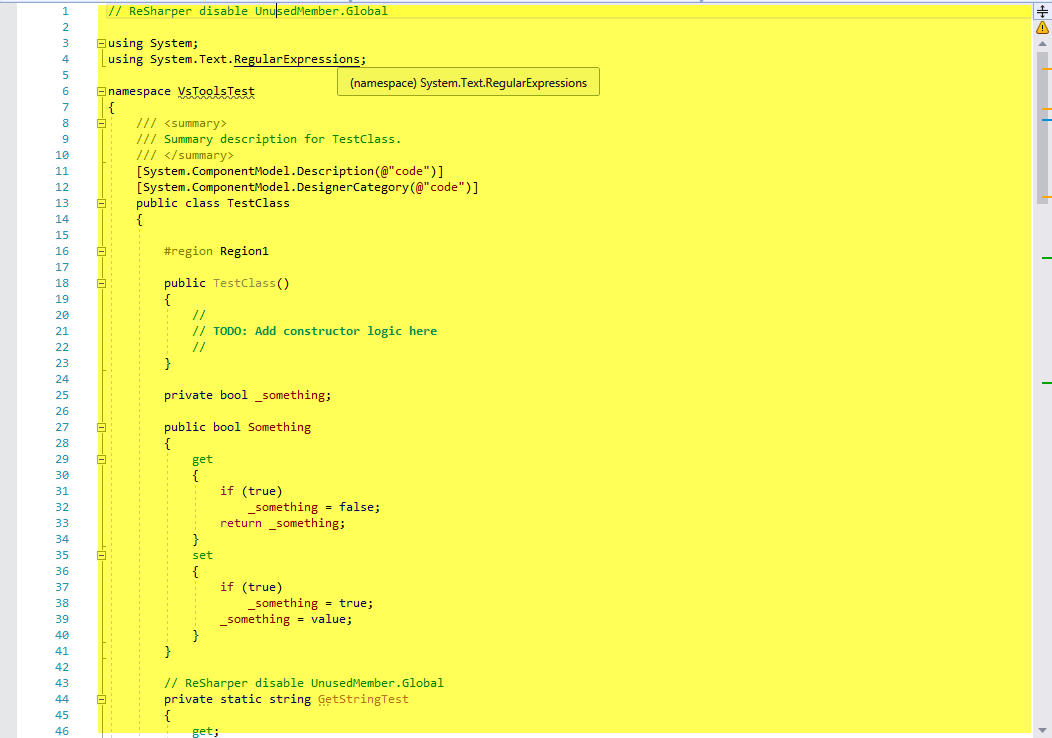
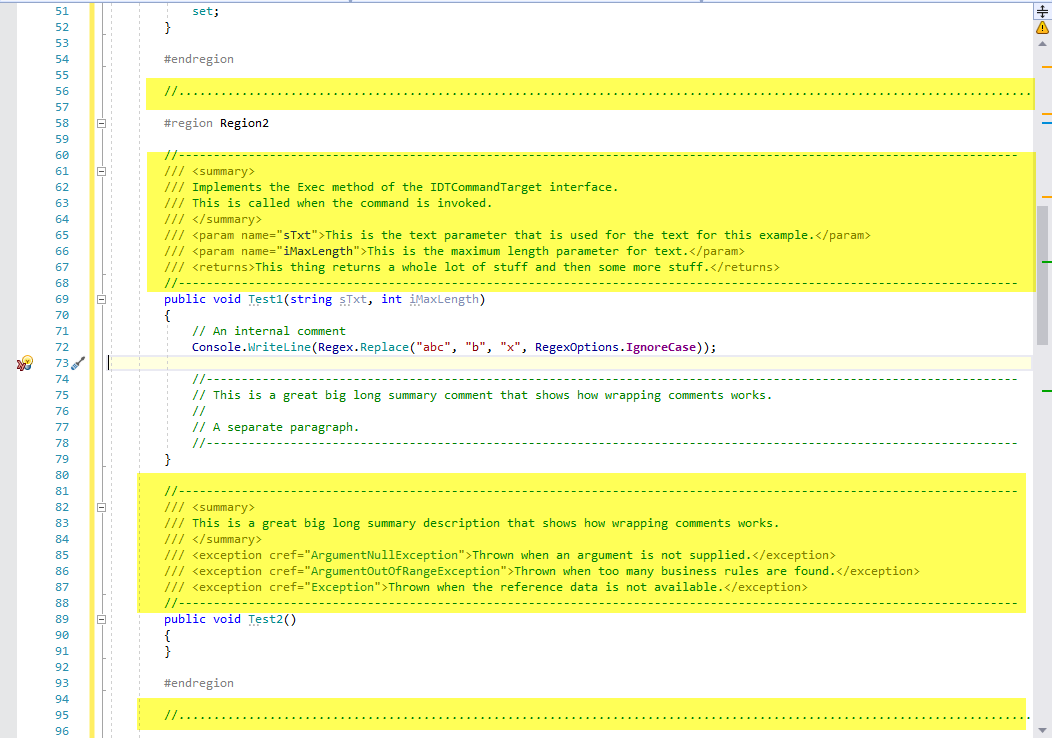
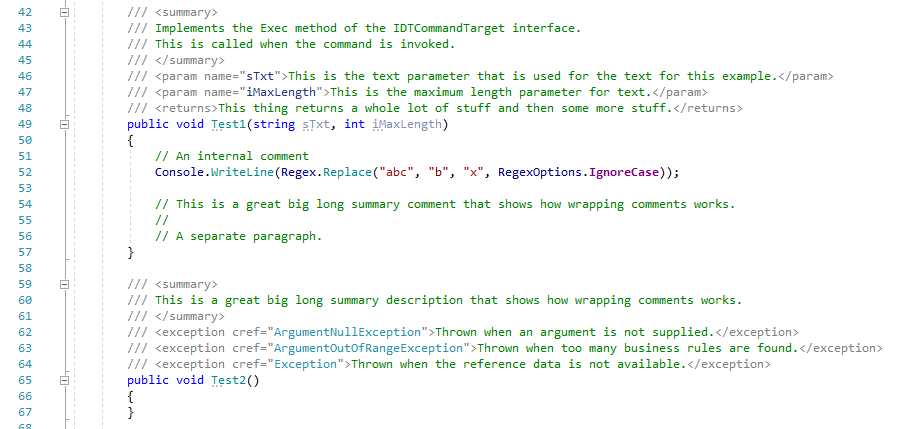
menu-itemChoose the Format Comments menu-item to format all the XML comments in the current code editor window.This essentially:
- Places a divider line at the beginning and end of all XML comments
- Places a divider line between each Region;
- Wraps all the internal text of the XML comments according to rules defined using the VSTools Options... menu-item.
Before:
After:
-
Remove All Divider Lines
menu-itemChoose the Remove All Divider Lines menu-item to remove all the divider lines from the code editor page which were previously added using the Format Comments menu-item. -
Collapse Solution Explorer
menu-itemChoose the Collapse Solution Explorer menu-item to collapse all the nodes in the Solution Explorer window to show only the root nodes:Before:
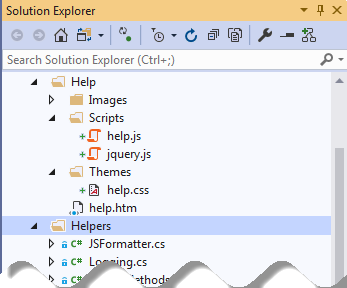
After:
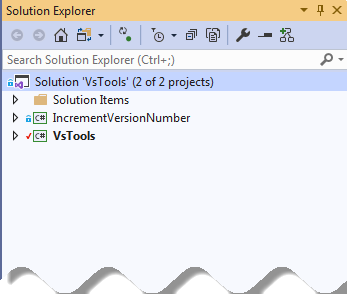
-
Toggle Current Region
menu-itemChoose the Toggle Current Region menu-item to toggle (i.e., show or hide) the current region in the code editor window (i.e., the region in the code editor window containing the cursor):Before:
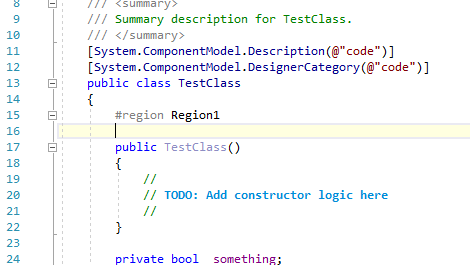
After:
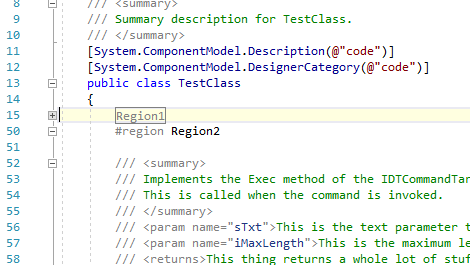
-
Expand All Regions
menu-itemChoose the Expand All Regions menu-item to expand (i.e., show) all regions in the code editor window:Before:
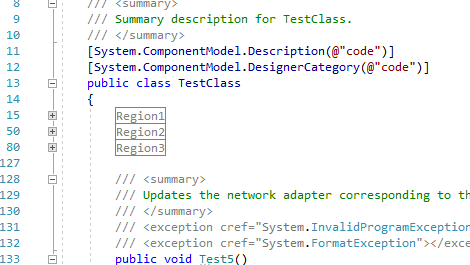
After:
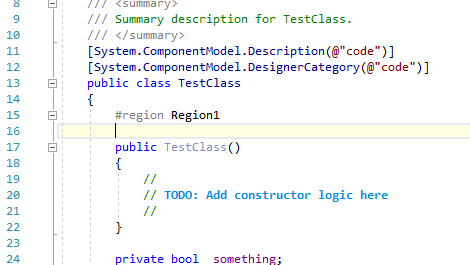
-
Collapse All Regions
menu-itemChoose the Collapse All Regions menu-item to collapse (i.e., hide) all regions in the code editor window:Before:
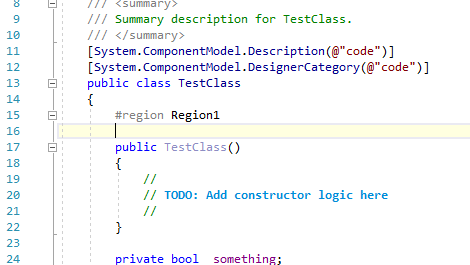
After:
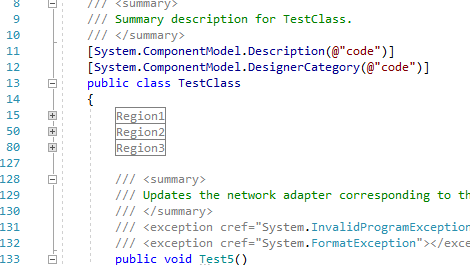
-
Bookmarks
menu-itemChoose the Bookmarks menu-item to display its sub menu-items :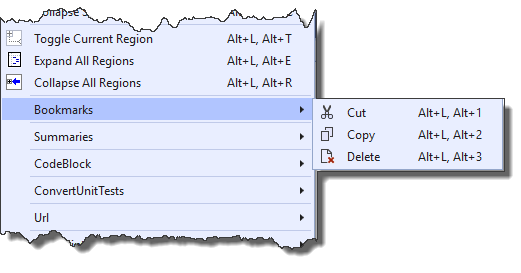
The following shows several lines of text inside a text editor window containing bookmarks:
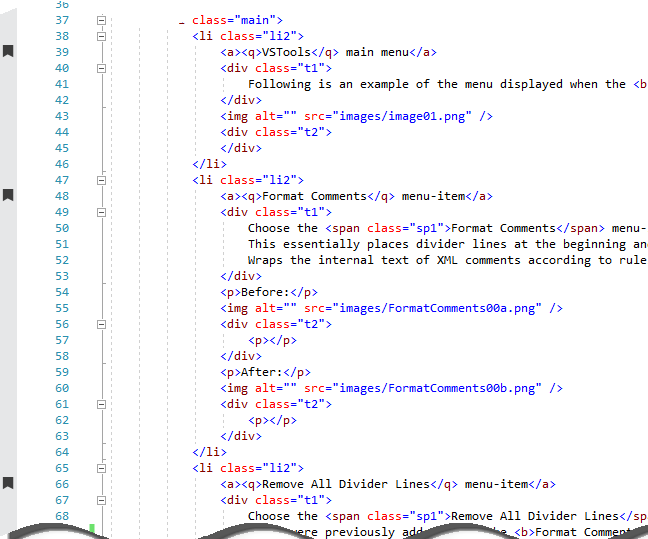
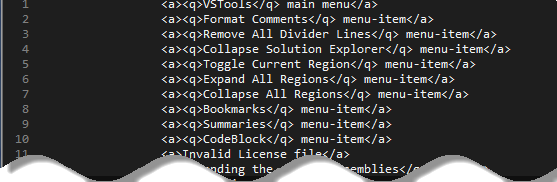
Choose Cut to copy all lines of text in the current code editor window containing a bookmark to the Window's clipboard and subsequently delete the lines.
Choose Copy to copy all lines of text in the current code editor window containing a bookmark to the Window's clipboard.
Choose Delete to delete all lines of text in the current code editor window containing a bookmark.
The following shows the cut or copied text corresponding to the bookmarked lines from the code editor window after being pasted into another text field:
-
Summaries
menu-itemChoose the Summaries menu-item to display its sub menu-items :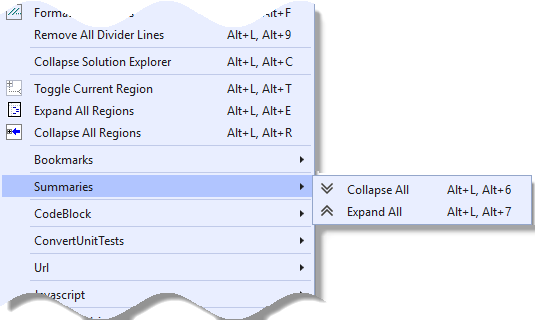
Choose Collapse All to collapse all summaries in the current code editor window.
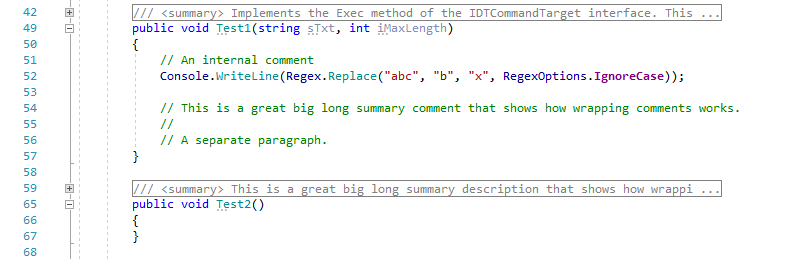
Choose Expand All to expand all summaries in the current code editor window.
The following shows expanded summary text inside a code editor window:
-
CodeBlock
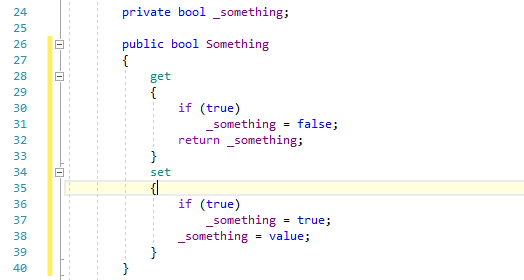
menu-itemChoose the CodeBlock menu-item to display its sub menu-items :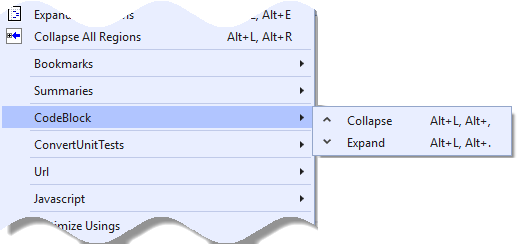
Choose Collapse to collapse the selected code block in the current code editor window.
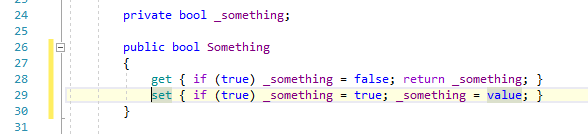
Choose Expand to expand the selected code block in the current code editor window.
-
Convert Unit Tests
menu-itemChoose the Convert Unit Tests menu-item to display its sub menu-items :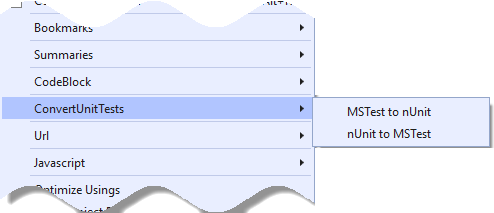
Choose MSTest to nUnit to convert the current MSTest unit tests in the code editor window to nUnit.
Choose nUnit to MSTest to convert the current nUnit unit tests in the code editor window to MSTest.
-
Url
menu-itemChoose the Url menu-item to display its sub menu-items :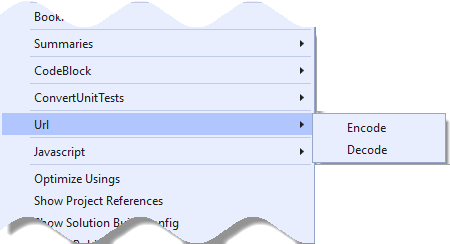
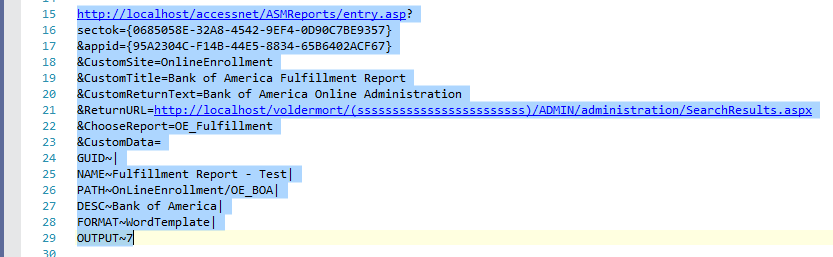
Choose Encode to encode the currently selected URL inside a code editor window.

Choose Decode to decode the currently selected URL inside a code editor window.
-
Javascript
menu-itemChoose the Javascript menu-item to display its sub menu-items :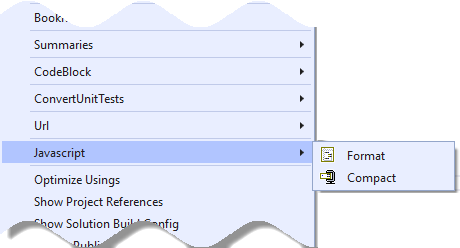
Choose Format to format (i.e., prettify) the currently selected javascript inside a code editor window.
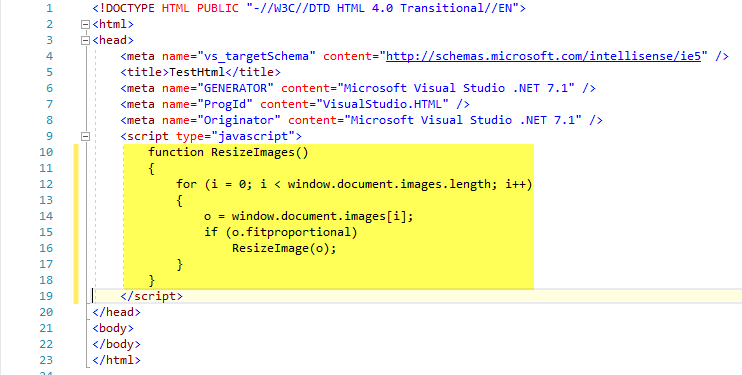
Choose Compact to compact (i.e., minify) the currently selected javascript inside a code editor window.

-
Optimize Usings
menu-itemThe Optimize Usings menu-item when clicked, will optimize the 'Usings' in the current code editor window or all code editor windows of the entire project or entire solution depending on the current selection.
NOTE: This feature was added to VSTools back during the introduction of Visual Studio 2005, but its usefulness is not the same since similar functionality has been recently incorporated into the latest versions of Visual Studio by Microsoft.
-
Show Project References
menu-itemThe Show Project References menu-item when clicked, writes information (in table form*) to the Visual Studio 'Output' window: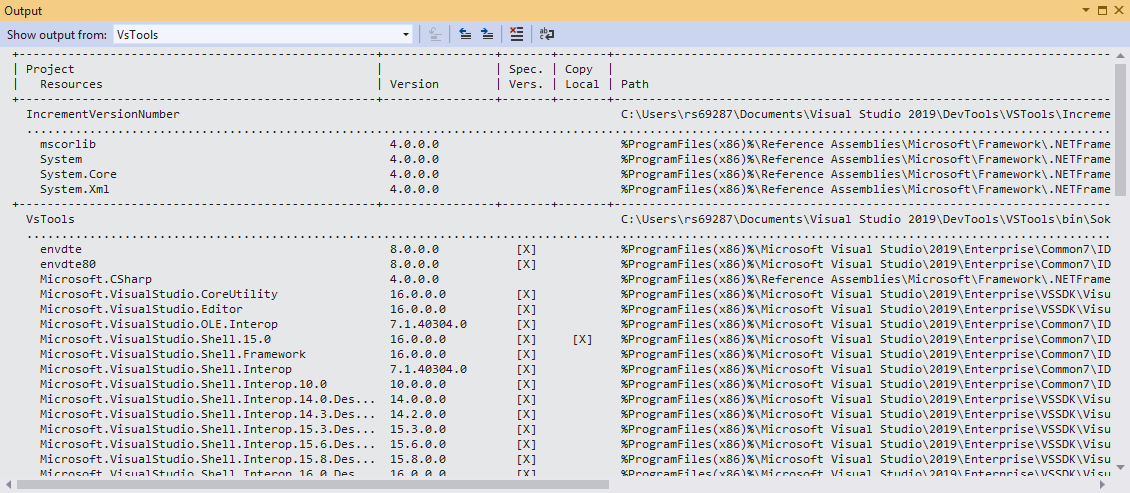
It shows all references pertaining to each project in the entire solution all at once.
*Columns provided are: 'Assembly Name', referenced 'Version', Is 'Specific Version', Is file 'Copied Local', full 'Path' of the assembly.
-
Show Solution Build Config
menu-itemThe Show Solution Build Config menu-item when clicked, writes information to the Visual Studio 'Output' window: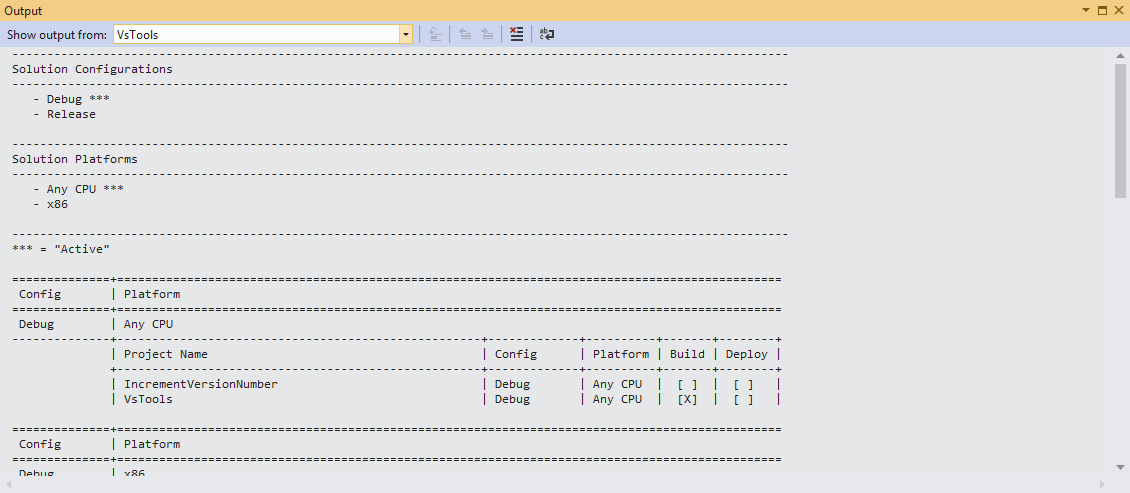 It shows all the information obtainable from the 'Build' 'Configuration Manager' dialog, but in this case, in one easy to read output which can also easily be printed and/or saved for later review.
 -
Toggle Publish
menu-itemChoose the Toggle Publish menu-item to toggle (i.e., show or hide) the Add to Source Control combobox located at the far right corner of the Visual Studio IDE status bar:Before:
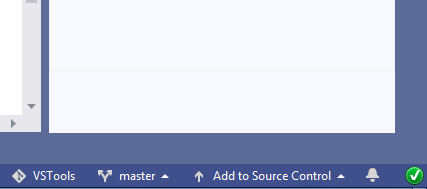
After:
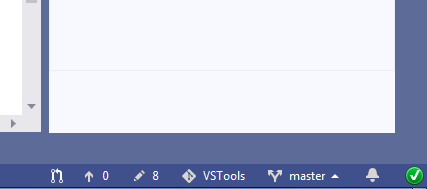
-
Generate Translation Report
menu-itemThe Generate Translation Report menu-item when clicked, displays the following dialog: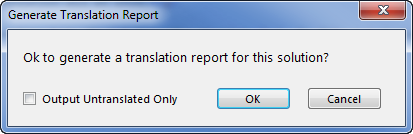 NOTE: this report generation is only useful when the 'Localizable' property of a form has been set to TRUE.
Clicking the 'OK' button will generate a report in Microsoft Excel Document format containing the list of all items in all forms defined thoughout the solution which need a translation defined for it.
In most cases, placing a checkmark into 'Output Untranslated Only' control will just put untranslated items into the Excel report obviously reducing its overall file size.
-
Paste as Comments
menu-itemThe Paste as Comments menu-item is used when you want to paste in a long string of text from the clipboard using the same rules for wrapping text as used for formatting XML comments.Standard 'Paste':

'Paste as Comments':

-
Lineup Variable Declarations
menu-itemThe Lineup Variable Declarations menu-item is used to align variable declarations inside a code editor window for temporary visual inspection.Before:

After:

-
Sort Selected Lines
menu-itemThe Sort Selected Lines menu-item when clicked will sort all the lines in the current selection in the code-editor window in lexicographical order.Before:
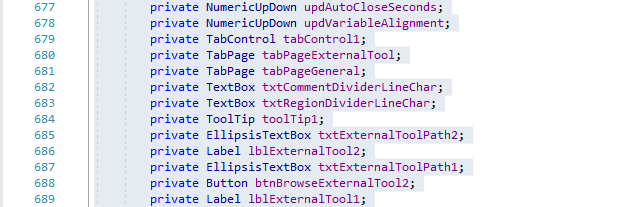
After:
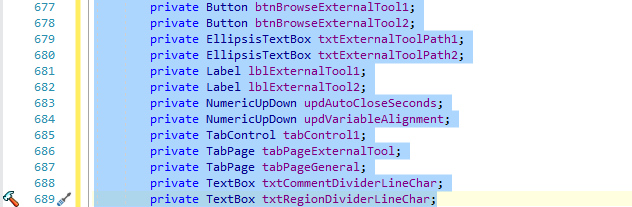
-
Regex Find and Replace...
menu-itemThe Regex Find and Replace...* menu-item when clicked, opens a special window for performing 'search' and/or 'replace' using standard Window's 'Regex' functionality: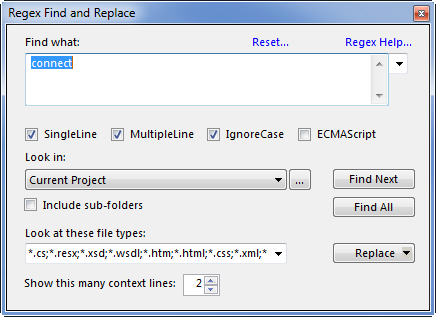
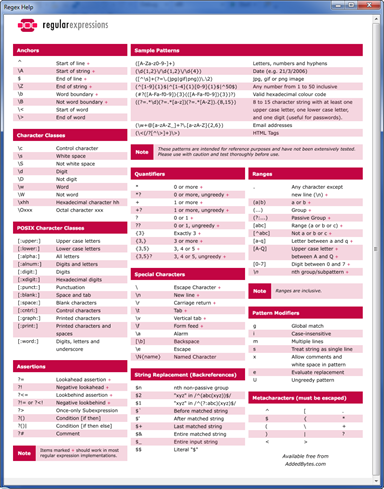
The following dialog is opened when the Regex Help... hyperlink is clicked in the preceding window:
* NOTE: This feature is still under construction so it may not function reliably!
-
Options...
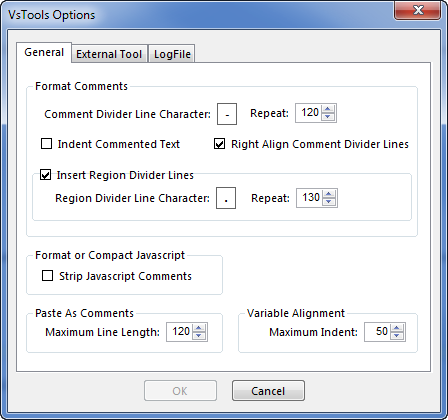
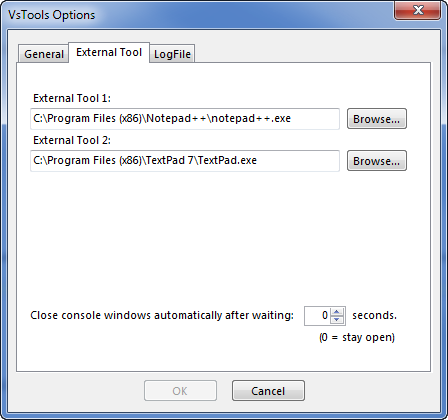
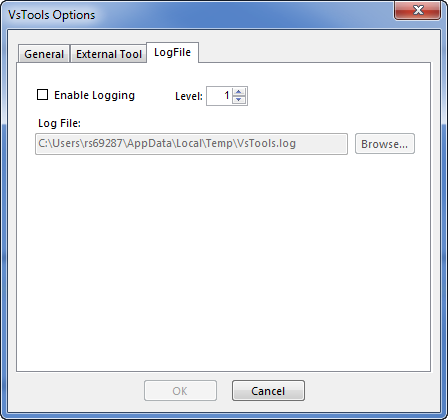
menu-itemThe Options... menu-item when clicked, will open the following dialog:'General' tab:
'External Tools' tab:
'Log File' tab:
-
External Tools
menu-itemChoose the External Tools menu-item to display its sub menu-items :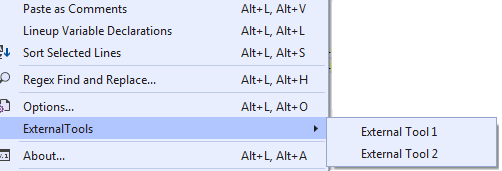
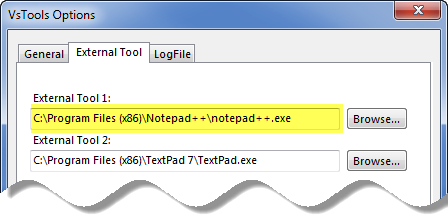
Choose External Tool 1 to run the external application defined using the Options dialog shown by clicking the Options... menu-item :
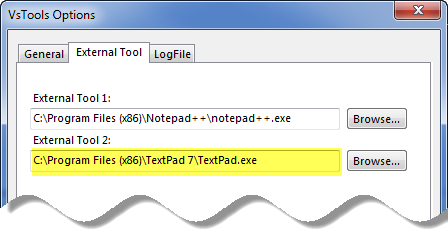
Choose External Tool 2 to run the external application defined using the Options dialog shown by clicking the Options... menu-item :
-
About...
menu-itemChoose the About... menu-item to display this dialog: